Guide to Managing Posts & Likes
I. View Your Posts
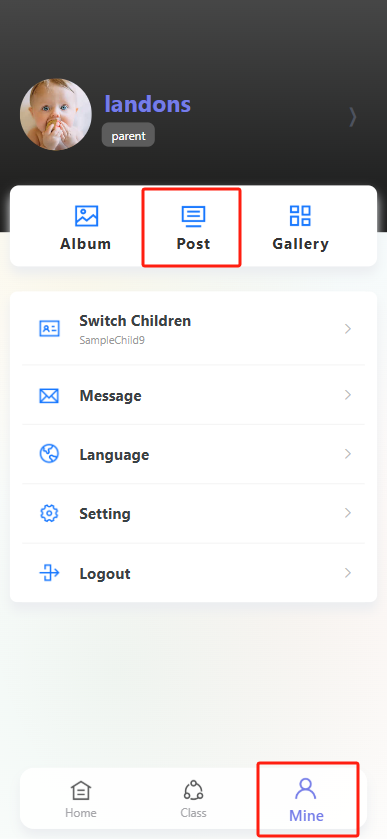
- Open theProgressive Web App and tap the "Profile" icon (far right in the bottom navigation bar) to enter your personal profile page.
- On the profile page, tap the "Post" option to open the Posts page.
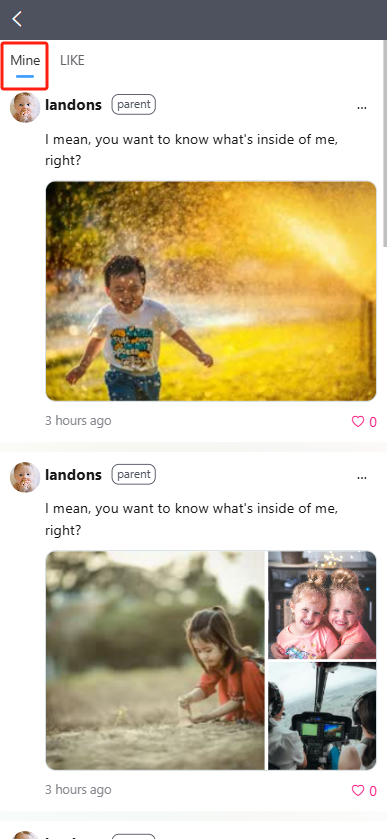
- By default, the "Mine" tab is selected—here, you will see all posts you have published. Each post includes:
- Your text content.
- Any attached photos (if applicable).
- The post timestamp.
- The like count (e.g., "❤️ 0" means no likes yet).
II. View Posts You’ve Liked
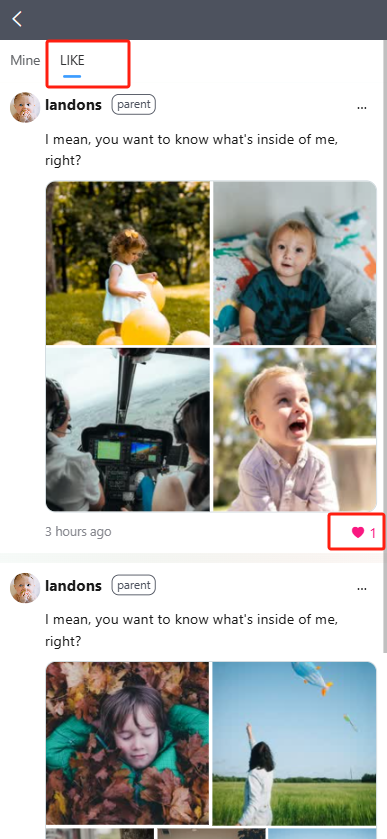
At the top of the Posts page, tap the "LIKE" tab to see a list of all posts you have previously liked.
III. Like/Unlike a Post
- For any post (yours or another user’s, if liking is enabled), tap the red heart icon in the bottom-right corner of the post:
- If the heart is empty: Tapping it will fill it in (solid red), and the like count will increase (e.g., from "❤️ 0" to "❤️ 1")—this means you’ve liked the post.
- If the heart is solid red: Tapping it will empty it, and the like count will decrease—this means you’ve unliked the post.