Guide to Posting to the School Feed
I. Access the Post Creation Screen
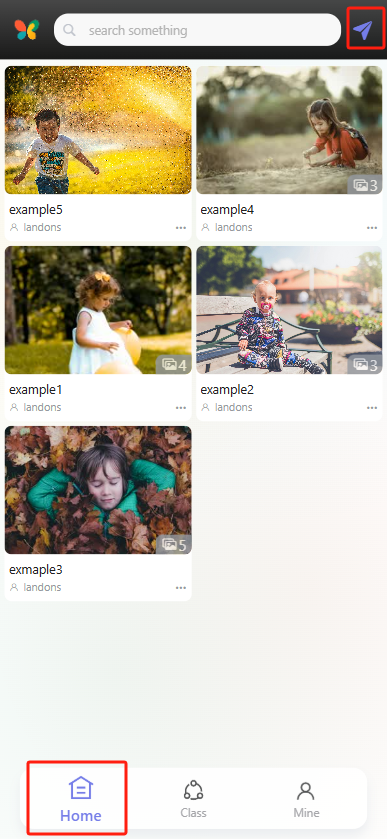
Open theProgressive Web App and tap the "Home" icon (leftmost in the bottom navigation bar) to enter the homepage. Next, tap the paper airplane-shaped "Post" button in the top-right corner to open the school feed post editor.
II. Edit Your Post Content
(1) Add a Title
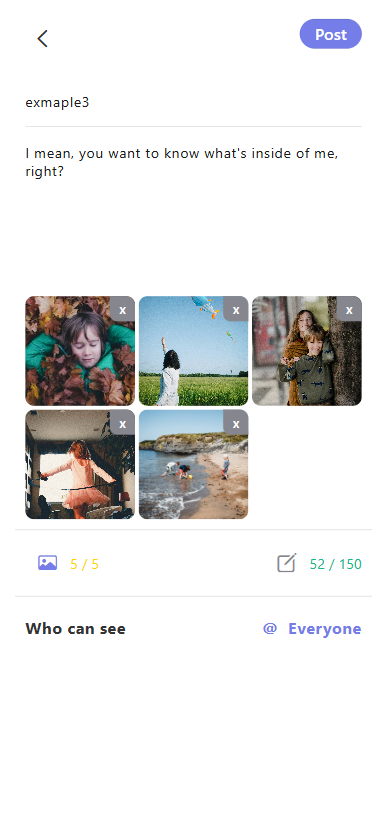
In the "Write down title" input field, enter a title for your post (e.g., "Example 3" as shown in the demo).
(2) Write the Body Text
In the text area below the title, type the details of your post (e.g., "I mean, you want to know what's inside of me, right?" as shown in the demo). Maximum 150 characters (the demo shows 52 characters used).
(3) Add Photos
Tap the photo icon below the text area to select and upload photos from your phone’s gallery (maximum 5 photos). The demo shows 5 photos uploaded, marked "5/5." To delete an uploaded photo, tap the "×" in the top-right corner of the image.
III. Set Visibility
-
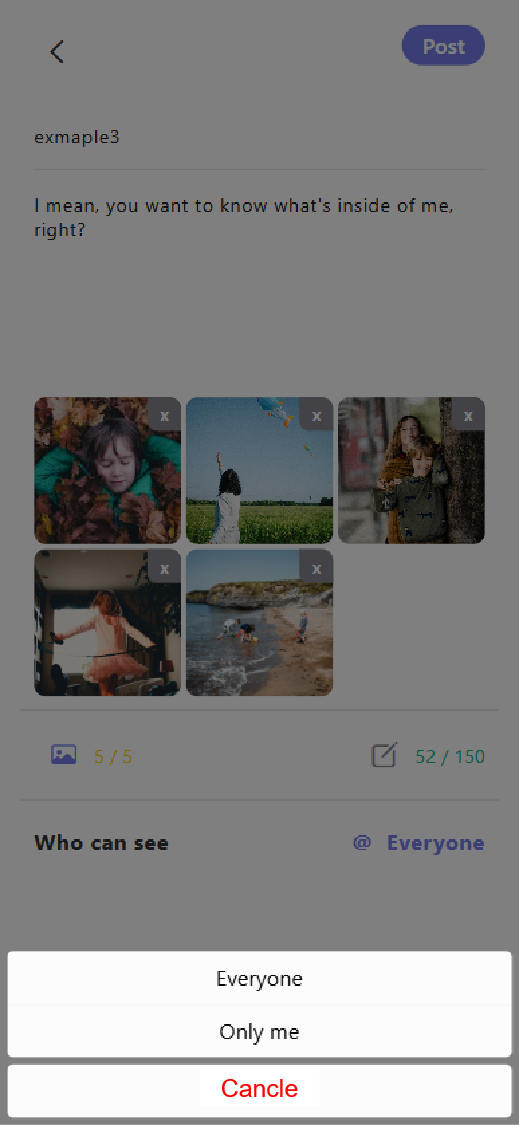
At the bottom of the post editor, tap "Who can see" to open the visibility menu:
- Select "Everyone": Post is visible to all members of the school (default/target visibility for school feed posts).
- Select "Only me": Post is visible only to you.
- Tap "Cancel": Abort the visibility selection.
IV. Publish the Post
确认标题、正文、图片及可见范围(选择 “Everyone”)设置无误后,点击界面右上角的 “Post” 按钮,即可成功发布校园圈动态。