Guide to Viewing Messages
I. Access the Messages Page
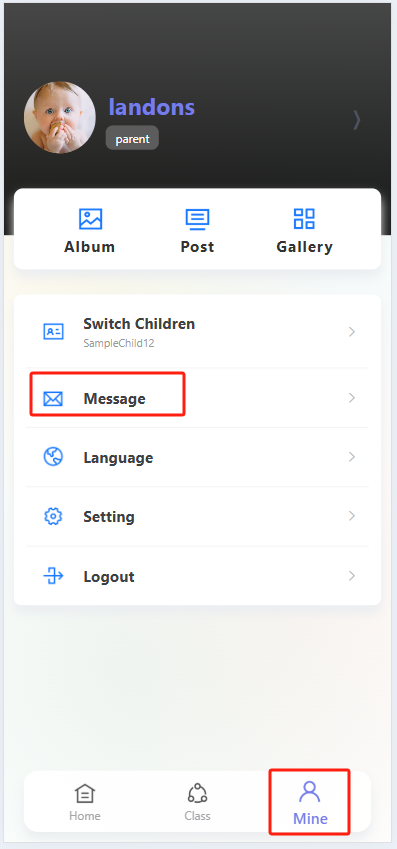
Open theProgressive Web App and tap the "Profile" icon (far right in the bottom navigation bar) to enter your personal profile page. On the profile page, find and tap the "Message" option to open the message list.
II. Browse the Message List
Once in the "Sys Notifs" (System Notifications) page, you will see a list of messages. Each entry displays:
- The message title (e.g., "System Message Example 1").
- A preview of the message content.
- The send date (e.g., "2025-01-08").
- The read status ("Readed" indicates the message has been opened).

III. View Message Details
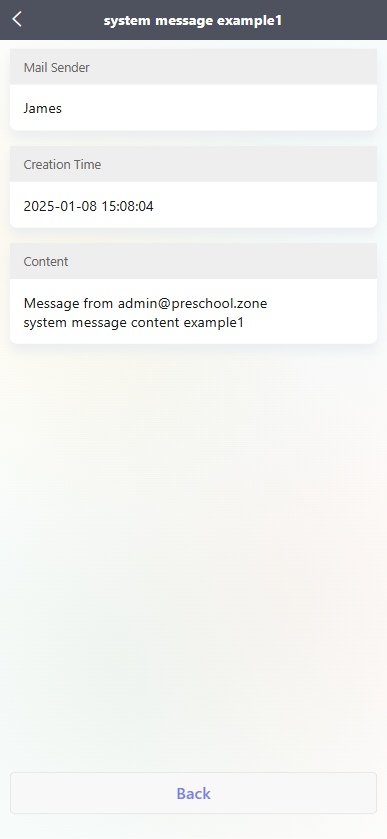
In the message list, tap any message you want to read (e.g., "System Message Example 1") to open its details page. Here, you can view:
- The sender (e.g., "James").
- The creation time (e.g., "2025-01-08 15:08:04").
- The full message content (e.g., "Message from admin@preschool.zone: System message content example 1").
IV. Return to the Message List
After reading the message details, tap the "Back" button at the bottom of the page to return to the message list and continue browsing other notifications.