Guide to Logging In & Resetting Your Password
I. Logging In
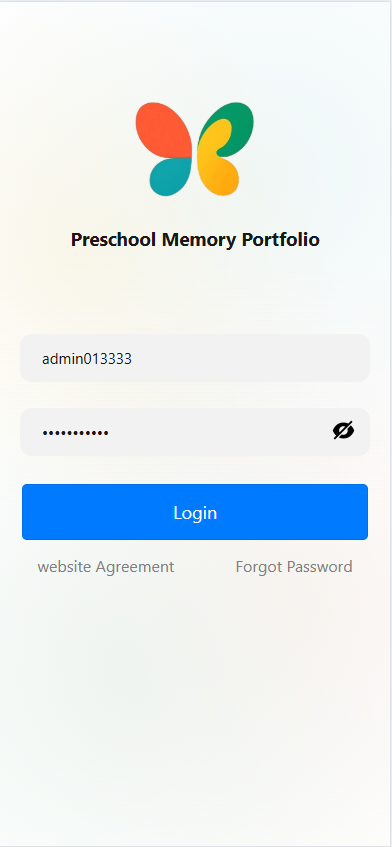
Open theProgressive Web App to access the login screen. Enter your account credentials:
- Type your account ID in the "Enter Account" field.
- Type your password in the "Enter Password" field (tap the eye icon to the right of the password field to show/hide the password). After verifying your information is correct, tap the blue "Login" button to attempt logging into the app.
II. View Terms of Use (Privacy Policy)
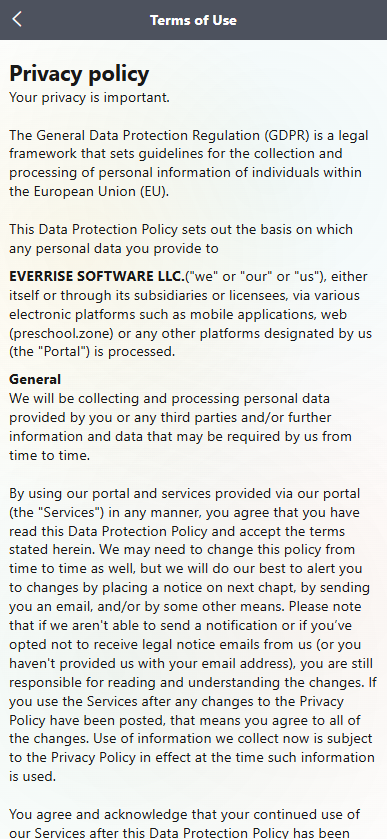
On the login screen, tap "Website Agreement" to open the "Terms of Use" page. Here, you can review the privacy policy and other terms—including details about how personal information is collected, processed, and protected (e.g., compliance with the General Data Protection Regulation (GDPR)).
III. Resetting a Forgotten Password
If you forget your password, tap "Forgot Password" on the login screen to access the password reset page:
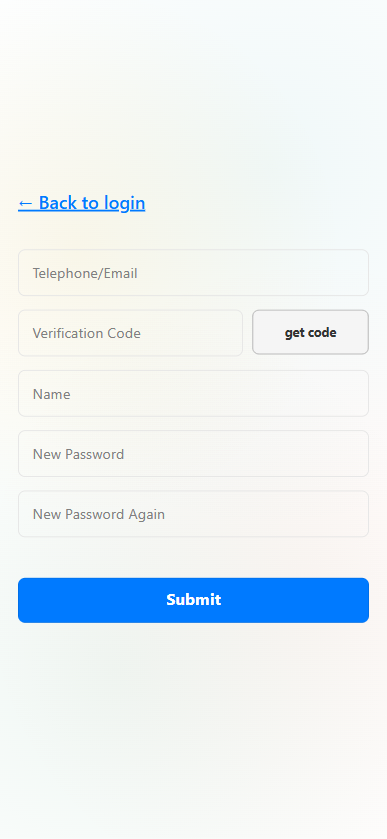
- In the "Telephone/Email" field, enter your registered phone number or email address.
- Tap "Get Code" to receive a verification code, then enter the code in the "Verification Code" field.
- Type your full name in the "Name" field.
- Create and confirm a new password: Enter your new password in both the "New Password" and "New Password Again" fields.
- Tap the blue "Submit" button to complete the password reset. You can then return to the login screen and sign in with your new password.