Guide to Saving Posts to Album & Previewing Albums
I. How to Save Posts to Album
When browsing the Class Feed (posts under the "Class" tab), if you see a post from the teacher that features your child or contains meaningful content, you can save it to the album by following these steps:
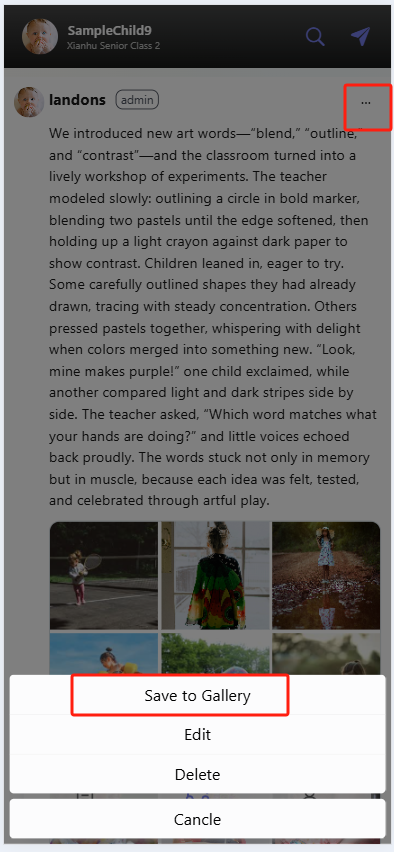
- Locate the target post and tap the "⋯" (More Options) button in the top-right corner of the post.
- From the pop-up menu, tap "Save to Gallery" (this is a prerequisite for saving to the album) to prepare the post content for saving.
II. Accessing the Album to View Your Child’s Collection
-
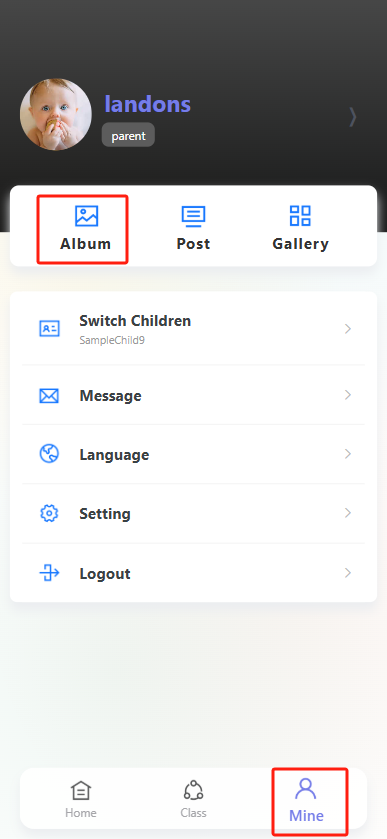
Tap the "Profile" icon (far right in the bottom navigation bar) to enter your personal profile page.
-
On the profile page, tap the "Album" option.
-
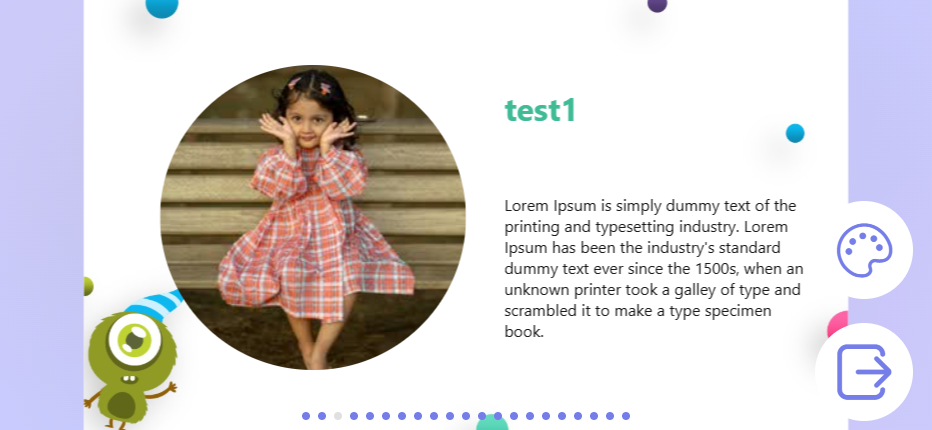
Once in "Album," you can preview your child’s organized growth album (displayed as a photo-and-text collection labeled "Photo Album") containing the posts you saved.
III. Album Preview
During preview, you can click "Template" in the bottom-right corner to switch to other templates. Users can swipe left or right to browse different pages, and click on an image to enlarge it or play a video.