User Profile
This module allows users to view and update their personal information, including display settings, contact details, and password.
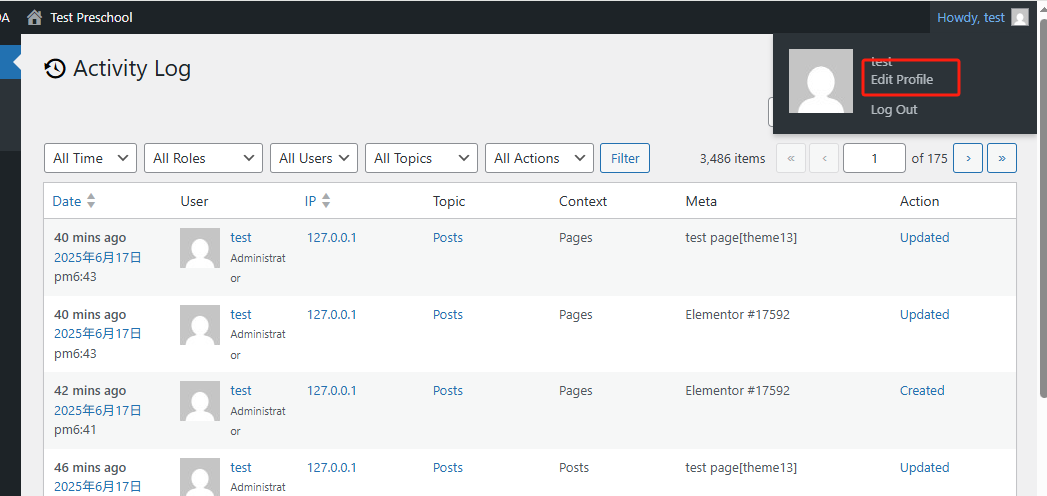
1. 🔧 Access Your Profile
- In the upper-right corner of the screen, click your username (e.g., test).
- From the dropdown, select 【Edit Profile】.
📍Refer to Screenshot 1.
2. 🎨 Customize Personal Options
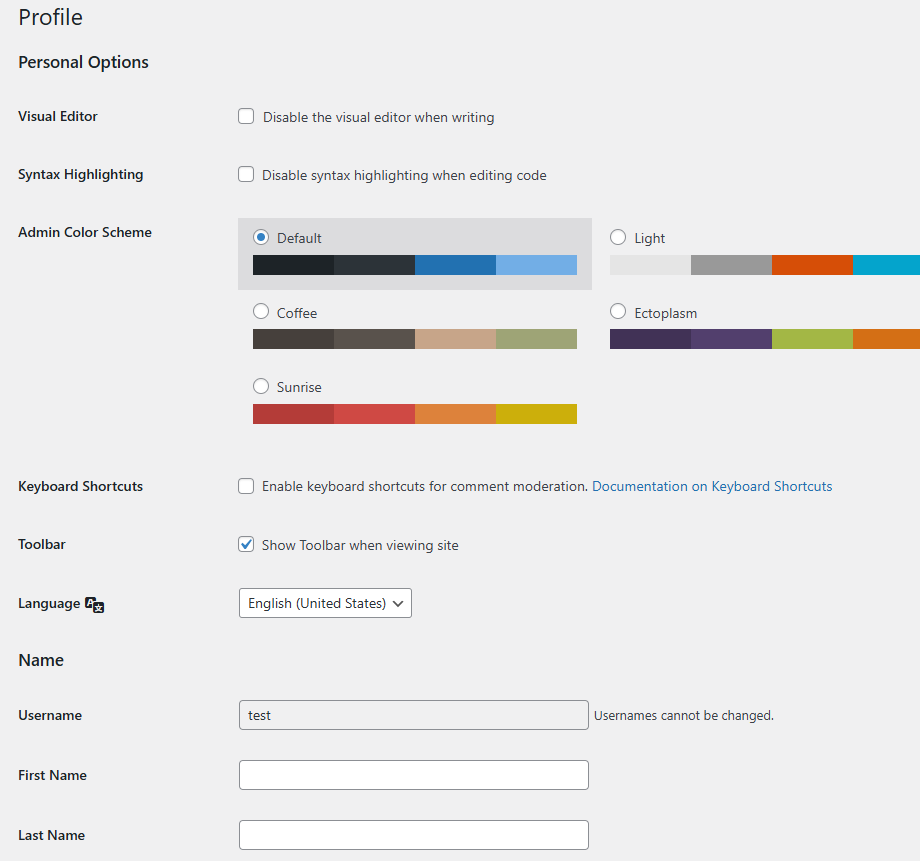
On the profile page, you can:
- Visual Editor: Disable the visual editor when writing (not recommended for most users).
- Syntax Highlighting: Enable or disable syntax highlighting in the code editor.
- Admin Color Scheme: Choose your preferred color theme for the WordPress dashboard.
- Keyboard Shortcuts: Enable moderation shortcuts (optional).
- Toolbar: Decide whether to show the admin toolbar when viewing the site.
- Language: Choose your dashboard display language.
📍Refer to Screenshot 2.
3. 📧 Update Contact Info
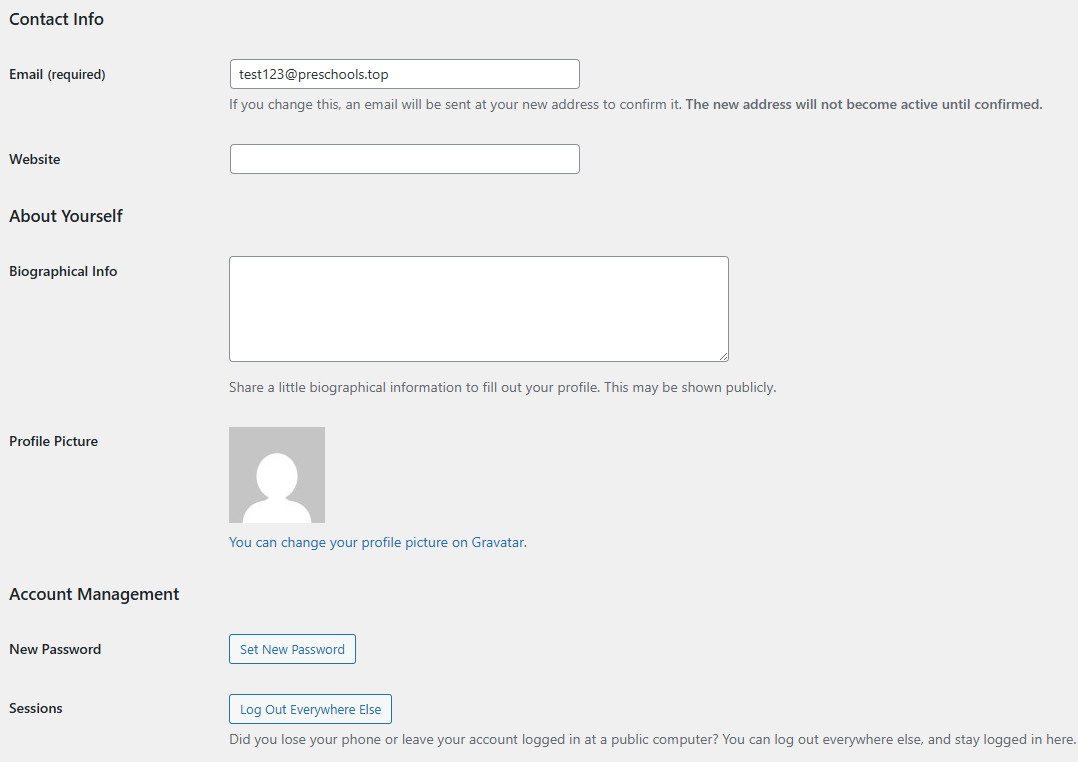
You can edit your basic contact details:
- Email: Change your account email address. A confirmation email will be sent.
- Website: (Optional) Add your personal or organization’s site link.
You can also:
- Add a short biographical info description.
- Change your profile picture using Gravatar.
📍Refer to Screenshot 3.
4. 🔐 Manage Account Security
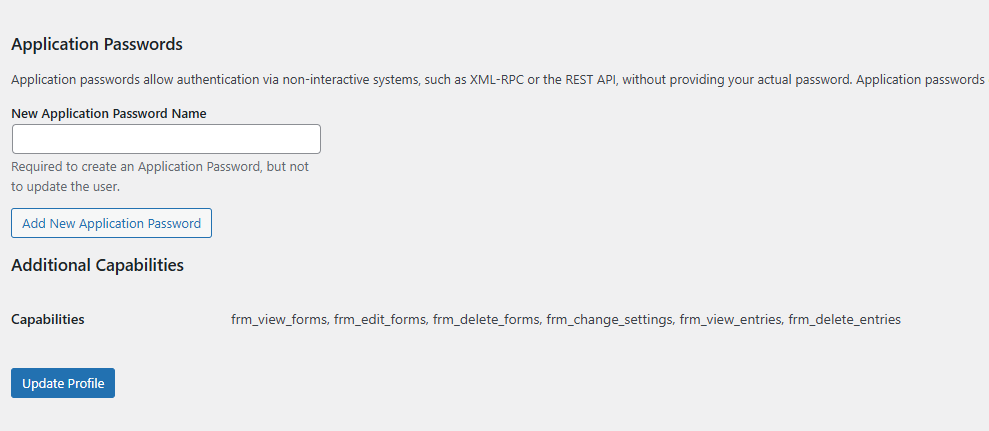
In the Account Management section:
- Click 【Set New Password】 to change your login password.
- Click 【Log Out Everywhere Else】 to force logout from all other devices.
In the Application Passwords section:
- Create a new application-specific password for external integrations via REST API or XML-RPC, without exposing your main password.
At the bottom, your user capabilities are listed if applicable.
Finally, click 【Update Profile】 to save all changes.
📍Refer to Screenshot 4.